Order Search
Use the Search tool to locate scan data for customers, attendees, orders, IDs, and barcodes. After finding an order, you can view the current scan status and manually check tickets in or out of your event.
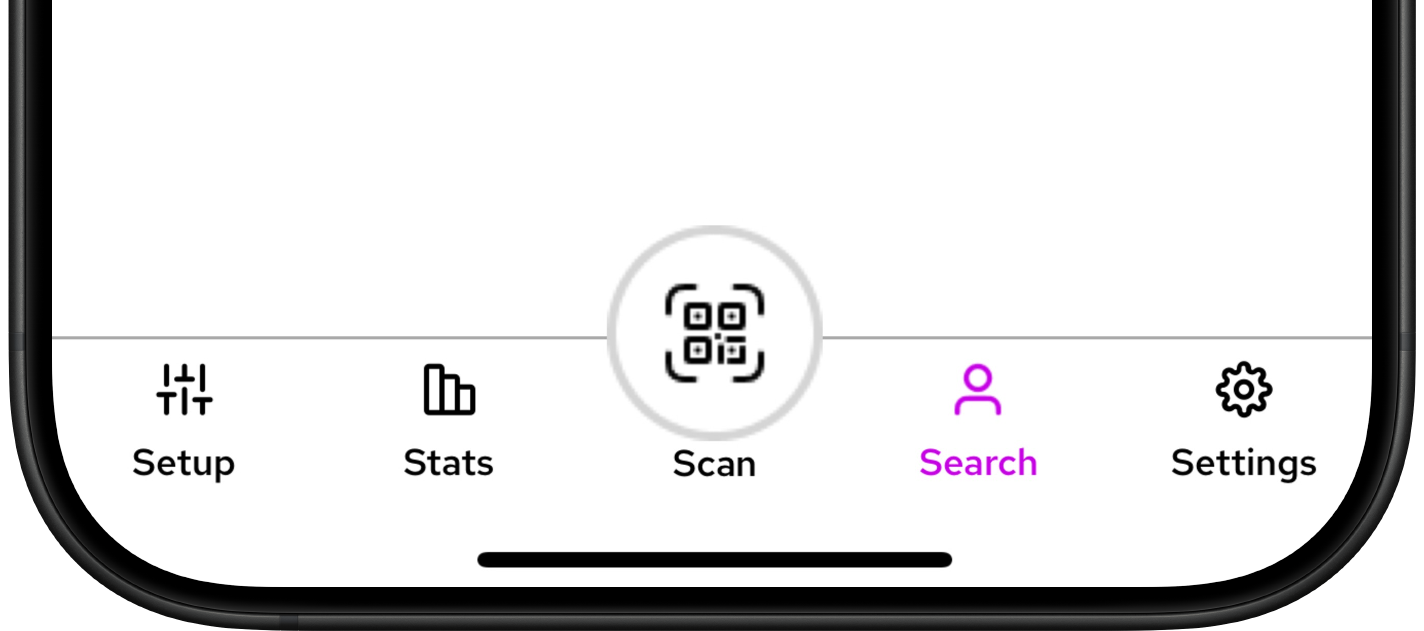
The Search page opens. Search for an order using any of the following:
- Customer Name
- Name on Ticket / Attendee Name
- Confirmation Number
- Sale ID
- Barcode
To check in all tickets in an order:
- Tap the order to view all tickets individually.
- Tap the tickets to check in.
- Tap Check In All.
To check in specific tickets, tap Check In on the individual ticket.
Validated tickets display a Check In status. Tap Check Out to check the ticket out.
View Scan History
The Scan History page lets you review recent check-ins and check-outs for your synced events. Use it to verify previous scans, troubleshoot entry issues, or confirm a customer's check-in status.
- Access: Open Scan History from the Scan screen or the Search screen.
- Data: All scans (check-ins and check-outs) appear in chronological order.
- Scope: Only scans from events synced to your device appear.
Accessing Scan History from the Search Screen
- From the bottom menu, tap the Search tab to open the Orders/Customers page.
- Tap the History icon in the top-right corner.
- The Scan History page displays a list of recent scans, showing order or ticket details, check-in or check-out status, and the date and time of each scan.
Configure Events
To change which events are loaded, tap Select Synced Events. Select any additional events and tap Confirm.
To remove events from your device, tap Unload Events.