Introduction to Event Scan App
Would you like to scan tickets, look attendees up by name, and view live attendance stats on a mobile device? You can do all of this and more with our scanning app!
Download our free mobile app, Event Scan, and start scanning! Event Scan runs on both iOS and Android devices.
Download The App
Setting Up The App
To use this app, you'll need an Apple device running at least iOS 15, or an Android running at least OS 9, with a camera for scanning.
Log In
To log in, enter your account email and password, then tap Sign in, then tap Accept to agree to the Terms of Service.
To reset your password, visit your account in a web browser.
Select Your Events
First, select your event (or events, if you need to scan for more than one event at a given entrance), then scan tickets.
You can access this menu later to edit your selection by tapping the Setup button on the main menu.
Choose your events for scanning. By default, all of the current-day events are displayed. Filter events by tapping the date parameters at the top (Tomorrow, Yesterday, Range, or Search).
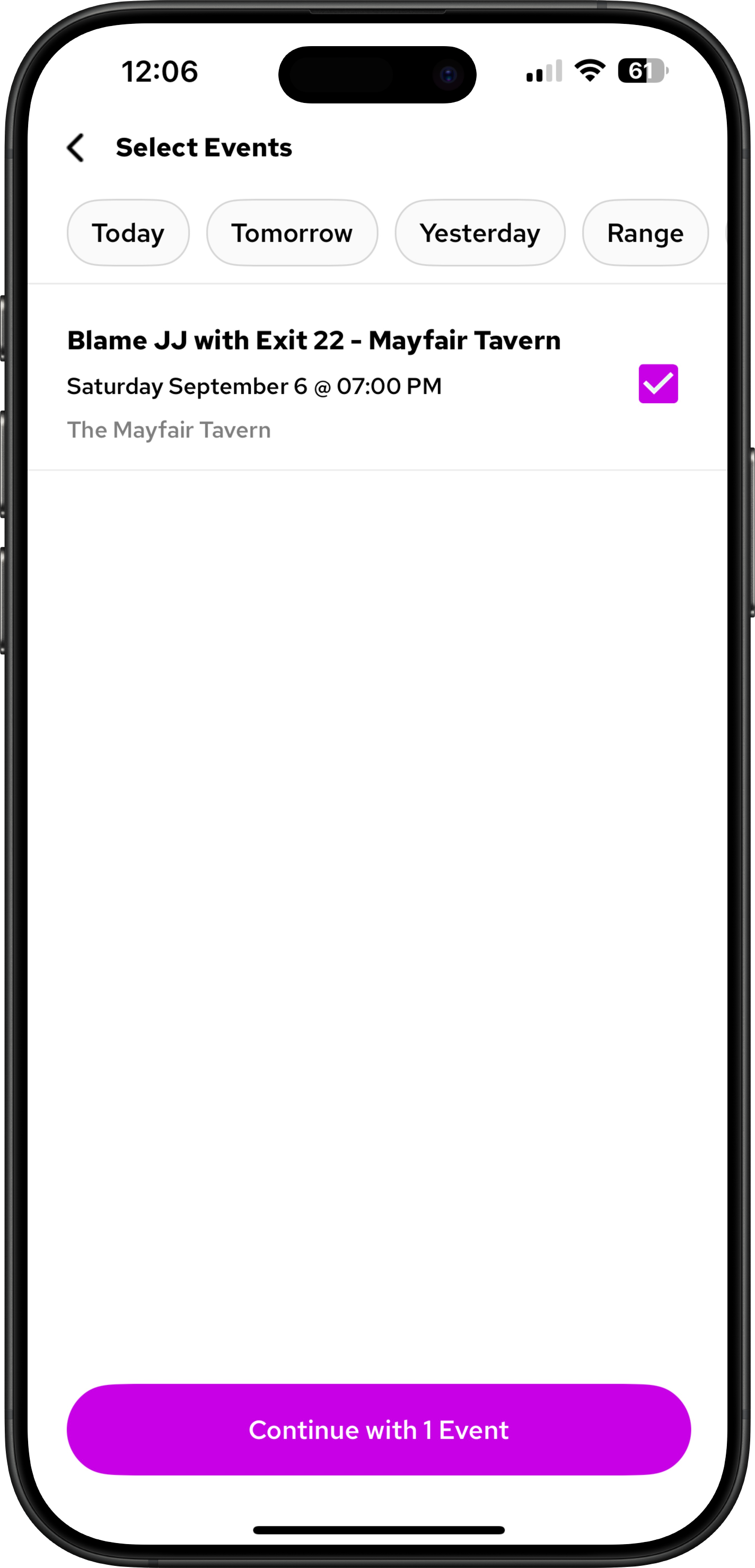
Once you finish selecting events, tap Continue. The button shows how many events you selected.
Your selected events appear in a list. All ticket types are selected by default for each event.
To filter individual ticket types:
- Tap into the event where you want to view all ticket types.
- Select the ticket types you want to use on the device.
- Tap Done when you're finished.
- Tap Done to save your selections.
Now you are ready to start scanning!
Network & Device Recommendations
Meet these requirements before scanning to avoid connection issues and app failures.
- Connect all devices to a dedicated private Wi-Fi network.
- Keep all devices within 50 feet of the Wi-Fi access point.
- Use a connection with at least 10 Mbps download and upload per device.
- Run iOS 15 or newer on Apple devices, or Android 9 or newer on Android devices.